4 Organizing code for a Python project
[!NOTE] This first half of this writeup is borrowed from the excellent Python 102 repository.
A well structured project is easy to navigate and make changes and improvements to. It is also more likely to be used by other people, and that includes you a few weeks from now.
4.1 Organization basics
We want to write a Python program that draws triangles:
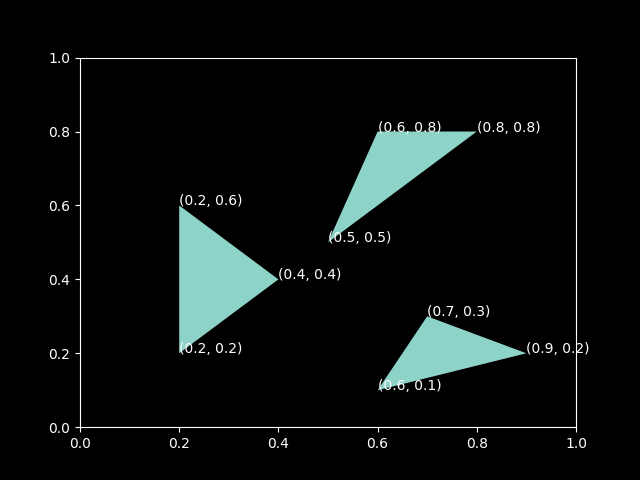
We use the Polygon class from matplotlib and write a script called draw_triangles.py to do this:
Do you think this is a good way to organize the code? What do you think could be improved in the script draw_triangles.py?
4.1.1 Functions
Functions facilitate code reuse. Whenever you see yourself typing the same code twice in the same program or project, it is a clear indication that the code belongs in a function.
A good function:
- has a descriptive name.
draw_triangleis a better name thanplot. - is small, no more than a couple of dozen lines, and does one thing. If a function is doing too much, then it should probably be broken into smaller functions.
- can be easily tested, more on this soon.
- is well documented, more on this later.
In the script draw_triangles.py above, it would be a good idea to define a function called draw_triangle that draws a single triangle and re-use this function every time we need to draw a triangle:
4.1.2 Python scripts and modules
A module is a file containing a collection of Python definitions and statements, typically named with a .py suffix.
A script is a module that is intended to be run by the Python interpreter. For example, the script draw_triangles.py can be run from the command line using the command:
$ python draw_triangles.pyIf you are using an integrated development environment like Spyder or PyCharm, then the script can be run by opening it in the IDE and clicking on the “Run” button.
Modules, or specific functions from a module, can be imported using the import statement:
import draw_triangles
from draw_triangles import draw_triangle
When a module is imported, all the statements in the module are executed by the Python interpreter. This happens only the first time the module is imported.
It is sometimes useful to have both importable functions as well as executable statements in a single module. When importing functions from this module, it is possible to avoid running other code by placing it under if __name__ == "__main__":
When another module imports the module draw_triangles above, the code under if __name__ == "__main__" is not executed.
4.2 How to structure a Python project?
Let us now imagine we had a lot more code, for example a collection of functions for:
- plotting shapes like
draw_triangle - calculating areas
- geometric transformations
What are the different ways to organize code for a Python project that is more than a handful of lines long?
4.2.1 A single module
geometry
└── draw_triangles.py
One way to organize your code is to put all of it in a single .py file like draw_triangles.py above.
4.2.2 Multiple modules
For a small number of functions the approach above is fine, and even recommended, but as the size or scope of the project grows, it may be necessary to divide code into different modules, each containing related data and functionality.
geometry
├── draw_triangles.py
└── graphics.py
Typically, the top-level executable code is put in a separate script which imports functions and data from other modules:
import graphics

graphics.draw_triangle([
    (0.2, 0.2),
    (0.2, 0.6),
    (0.4, 0.4),
])

graphics.draw_triangle([
    (0.6, 0.8),
    (0.8, 0.8),
    (0.5, 0.5),
])

graphics.draw_triangle([
    (0.6, 0.1),
    (0.7, 0.3),
    (0.9, 0.2),
])
4.2.3 Packages
A Python package is a directory containing a file called __init__.py, which can be empty. Packages can contain modules as well as other packages, sometimes referred to as sub-packages.
For example, geometry below is a package containing various modules:
draw_triangles.py
geometry
├── graphics.py
└── __init__.py
A module from the package can be imported using dot notation:
import geometry.graphics
geometry.graphics.draw_triangle(args)
It is also possible to import a specific function from the module:
from geometry.graphics import draw_triangle
draw_triangle(args)
Packages can themselves be imported, which really just imports the __init__.py module.
import geometryIf __init__.py is empty, there is “nothing” in the imported geometry package, and the following line gives an error:
geometry.graphics.draw_triangle(args)AttributeError: module 'geometry' has no attribute 'graphics'4.3 Importing from anywhere
4.3.1 sys.path
To improve reusability, you typically want to be able to import your modules and packages from anywhere, that is, from any directory on your computer.
One way to do this is to use sys.path:
import sys
sys.path.append("/path/to/geometry")

import graphics
sys.path is a list of directories that Python looks for modules and packages in when you import them.
4.3.2 Installable projects
A better way is to turn your code into a proper project with uv. For a reusable library, uv can create the basic layout for you:
$ uv init --lib geometry
$ cd geometry
This creates a pyproject.toml describing the project, a package directory for your importable code, and a local project environment that uv can manage for you. A small library project might then look like this:
pyproject.toml
README.md
geometry
├── graphics.py
└── __init__.py
A minimal pyproject.toml can include the following:
[project]
name = "geometry"
version = "0.1.0"
description = "Geometry utilities for drawing and transforming shapes"
readme = "README.md"
requires-python = ">=3.12"
If the project has dependencies, add them with uv add:
$ uv add matplotlibThis updates pyproject.toml, refreshes the lockfile, and syncs the project environment.
To create or refresh the environment for the project, run:
$ uv syncOnce the project environment exists, you can run Python or other tools inside it with uv run:
$ uv run pythonThis starts Python with your package available for import, without manually editing sys.path.
For example:
import geometry.graphics
geometry.graphics.draw_triangle(args)
During development, uv works directly with the project in your current checkout, so changes to your package are immediately visible the next time you use uv run.